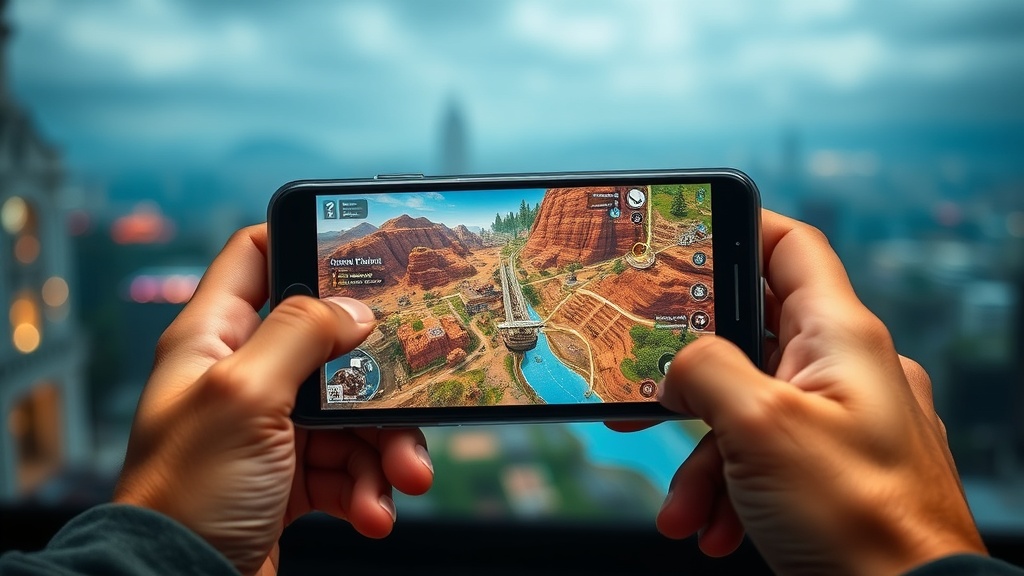
Use Your Phone as a Second Screen for Gaming Maps and Guides

Quick Tip
Mount your smartphone beside your monitor and use it as a dedicated second screen for maps, guides, or Discord so you never have to alt-tab again.
This post covers how to turn a smartphone into a second screen for gaming maps, walkthroughs, and chat apps — and why keeping reference material off the main monitor helps focus and posture. Instead of squinting at a browser tab wedged beside the game window, a phone beside the keyboard or mounted on a desk arm gives quick glances without breaking immersion. It's a small shift that protects both your neck and your attention span.
What apps let you use your phone as a second screen while gaming?
Duet Display, spacedesk, and even Discord mobile are the most reliable ways to turn a phone into a gaming helper. Duet Display shines for iPhone and iPad users who want a wired, low-latency connection to a Windows PC or Mac. Spacedesk is free, runs on Android, and turns almost any old phone into a wireless extended display. That said, not everyone needs full desktop mirroring — sometimes a browser open to MapGenie or a PDF guide is all that's required. (An old phone in a drawer can become the most useful piece of gear on the desk.)
Is a phone second screen better than Alt-Tabbing?
For most players, glancing at a phone is faster and far less disruptive than Alt-Tabbing out of a fullscreen game. Here's the thing — Alt-Tabbing can cause stutter, frame drops, or even crashes in titles running exclusive fullscreen. Competitive shooters like CS2 and Valorant are notorious for this. A phone keeps the game locked in while stats, maps, or chat sit at eye level. No lost frames. No lobby disconnects.
| Method | Speed | Immersion | Best For |
|---|---|---|---|
| Alt-Tab | Slow | Breaks focus | Quick one-off checks |
| Phone screen | Fast | Keeps focus | Maps, guides, Discord |
| Dedicated second monitor | Fastest | Best | Streamers and multitaskers |
How do you set up a phone as a second monitor for PC gaming?
The easiest method is installing a screen-extension app on both devices, connecting over Wi-Fi or USB, and dragging the guide window to the phone. The whole process takes under ten minutes and works with both Android and iOS. Follow these steps to get running:
- Download spacedesk or Duet Display on the phone and the matching driver on the PC.
- Launch both apps and connect to the same network — or plug in a USB cable for a wired, lag-free link.
- Inside display settings, extend the desktop (don't mirror) so the phone becomes its own independent display space.
- Drag the browser, map, or chat window to the phone screen — it behaves just like any other monitor.
- Mount the phone at eye level. A Lamicall Gooseneck Holder clamped to the desk works well and keeps the neck in a neutral position.
Worth noting: wireless setups can introduce a tiny bit of lag, so they're best for turn-based games or static guides. The catch? For competitive shooters like Call of Duty or Apex Legends, a wired connection — or even just a standalone app like MapGenie — is the safer bet. Burnout isn't only about grinding ranked ladders until 3 a.m. It's also the small physical and mental strains that pile up session after session. A phone second screen cuts the clutter, keeps the main monitor sacred for the game itself, and reminds you that smart setup beats brute-force grinding every time.